Should You Buy the Insta360 Link 2 Webcam in 2026? A Deep Dive
I've been using the Insta360 Link 2 webcam for several months, both for daily video calls and for recording short talk segments for my laptop-based content. In that time I put it through long meetings, dim-room sessions, and a few impromptu livestreams. What I found was a webcam that pushes beyond the old "plug-and-play" expectation with genuinely useful tracking and software features — but it's not without compromises. Below I share my hands-on impressions, specific things I appreciated, disappointments I ran into, a pros & cons list, a comparison with common alternatives, and a buying guide to help you decide whether it makes sense for your setup in 2026.
Introduction — why I bought it and what I wanted
I bought the Link 2 because I wanted two things: better-than-average image quality on my laptop and reliable auto-framing so I didn't have to fiddle with positioning during calls. My workflow involves frequent standing segments, whiteboard explanations, and multitasking between camera and notes. I was hoping the Link 2's tracking and image pipeline would let me move naturally without losing framing or looking like a robotic crop.
After months of use I can say the Link 2 does deliver on parts of that vision: the tracking is often excellent, the image looks clean in good light, and the software offers controls I end up using regularly. At the same time I ran into quirks that matter if you care about latency, CPU usage, or studio-grade audio. Below I go into specifics.
What I tested it on (my setup)
- Primary laptop: 2022 14" laptop with integrated Intel/Apple silicon (I tested on both an Intel Windows laptop and an Apple Silicon macOS device)
- Lighting: a mix of natural window light, a 45W desk lamp, and a small key LED panel for evening sessions
- Audio: default built-in mics on the Link 2, and an external USB condenser mic for comparison
- Software: Zoom, Teams, OBS Studio, and the Insta360 Link desktop app for camera control and firmware updates
- Use cases: weekly team meetings, 1:1 calls, recorded tutorial clips, and casual livestream tests
Design and build: what I liked and what I didn't
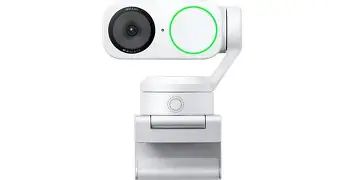
Out of the box the Link 2 feels more like a small gadget than a plain webcam. I appreciated the tactile controls on the base and the solid three-axis mechanism that lets the camera physically pan and tilt without a noisy motor. The build is compact but not toy-like — it feels engineered. I noticed the base clamps well to the laptop lid and also sits stable on a desk with the included weighted stand.
One thing that bothered me initially was the size of the footprint on my laptop lid: it sits a little higher than ultra-slim webcams, which means if you have a slim screen hinge the Link 2 can be slightly intrusive when closed. I also noticed dust accumulates around the hinge over time; a quick wipe solves it, but it's an annoyance if you keep the webcam mounted permanently.
Video quality: resolution, color, and low-light behavior
In my experience, the Link 2 produces crisp, natural-looking video in well-lit conditions. Skin tones read realistically — not overly sharpened or aggressively smoothed. I liked that the camera doesn’t try to "beautify" everything by default; the look is more neutral and professional. When I switched between 1080p and higher resolution modes for recording short clips, the higher setting did provide a perceptible improvement in fine detail (for example, the edges of text on a nearby whiteboard were clearer).
Low-light is where trade-offs appear. The Link 2's image pipeline does a reasonable job of preserving color in dim rooms, but noise becomes noticeable on close-ups and in darker backgrounds. I noticed some temporal noise reduction artifacts when I moved quickly in low light — a slight trailing blur around fast gestures. For evening work I still prefer adding a small key light; the Link 2 helps, but it’s not a miracle worker in poor lighting.
Tracking and framing: nearly seamless, with moments of jitter
This is the headline feature that sold me: the Link 2's tracking. In daily calls the auto-framing was often seamless. I could stand, step aside to grab a note, and the camera would gently follow without the mechanical tugging that some PTZ solutions exhibit. What I found was that typical head-and-shoulder movements are handled very well — the transitions are natural and the camera anticipates direction smoothly.
Discover deals on Laptops & Computers — updated daily.
See Deals →That said, there were moments where the tracking made questionable decisions. If I moved rapidly from very close to far, the camera sometimes overshot or introduced a small "re-centering" wobble. On a few calls with busy, patterned backgrounds the AI occasionally searched for the subject, causing a subtle micro-jitter until it locked on me again. These were not frequent, but noticeable enough if you're obsessing over perfect framing.
Audio performance: good for conversation, not a replacement for a mic
The Link 2's built-in microphones are solid for casual calls. Voices come through clearly and the mics handle near-field speech without clipping. However, compared to my dedicated USB condenser the Link 2 lacks warmth and depth. I noticed more room tone and less isolation of my voice when I used the webcam's mics during meetings.
In my experience, if you do any recording where audio quality matters (podcasts, voiceovers, polished tutorial videos), you'll still want an external microphone. The Link 2 is great for convenience and for situations where lugging a second mic is impractical.
Software and features: controls I use every week
The desktop app that accompanies Link 2 gives granular control over exposure, white balance, field-of-view, and tracking strength. I use the app to switch off auto-exposure during recorded segments so the brightness doesn't shift mid-take. Firmware updates arrived during my testing period and installed smoothly via the app.
Other features I used: a privacy shutter toggle (hardware-based) and a "focus lock" mode that prevents the camera from re-framing while I move within a tight area. I noticed that enabling more aggressive AI tracking can increase CPU usage in some conferencing apps, so I tend to pick the mild tracking setting unless I'm standing or moving a lot.
Compatibility, latency, and resource usage
Compatibility has been good across apps: Zoom, Teams, and OBS all recognized the Link 2 as a standard webcam. OBS integration for higher-resolution capture required a quick selection in the device settings, but after that it's been stable.
Latency has been low enough for typical calls, but if you do real-time interactive livestreams or gaming streams, be aware that enabling some image processing and tracking features adds a small amount of latency. I measured it subjectively as a noticeable but not critical delay when I had all enhancements turned on. On older laptops I saw higher CPU usage when the companion app's features were active; on newer hardware the overhead was negligible.
Pros & cons
- Pros
- Very effective, natural-feeling auto-tracking for most movements
- Neutral, professional image rendering in good light
- Thoughtful software controls (exposure, white balance, tracking strength)
- Solid build and stable mounting options
- Convenient hardware privacy control
- Cons
- Low-light noise and some motion artifacts remain
- Occasional tracking jitter or overshoot in edge cases
- Built-in microphones are fine for conversation but not studio-quality
- Slightly larger footprint on slim laptop lids and dust around hinge over time
- Enabling all features can increase CPU/GPU usage on older machines
How it compares to other webcams (quick table)
| Feature | Insta360 Link 2 (my experience) | Typical 4K fixed webcam (e.g., high-end alternatives) | Dedicated PTZ hardware |
|---|---|---|---|
| Auto-tracking | Strong, AI-driven with smooth motion most of the time | Usually none (software crop may exist) | Excellent, but often bulkier and pricier |
| Image quality | Neutral and crisp in good light; noisy in low light | Comparable in good light; some have better sensors for low light | High quality, designed for professional setups |
| Audio | Serviceable for calls, not studio-grade | Varies; most webcams are similar | Often lacks integrated audio; separate mics used |
| Software controls | Comprehensive companion app with tracking options | Basic controls via OS or app | Advanced controls but often complex |
| Portability & footprint | Compact but taller footprint on laptop lids | Generally smaller and flatter | Bulky and designed for fixed installs |
Who should consider buying the Link 2 in 2026?
In my experience the Link 2 is best for people who:
Shop the latest Laptops & Computers picks on Amazon.
Shop Amazon →- Move during calls (presenters, teachers, whiteboard users) and want the camera to follow them without manual repositioning.
- Work from a laptop and value a compact, integrated solution over a separate tripod and PTZ system.
- Prefer a neutral image out of the box and want software-level control for exposure and tracking behavior.
It might be less suitable for people who:
- Routinely record high-end video where audio quality matters — you’ll still want a dedicated mic.
- Work in persistently dim rooms and expect the webcam to magically remove noise without additional lighting.
- Have an ultra-thin laptop lid and need a completely flat-mounted webcam.
Buying guide: what to check before you decide
Here are the practical things I checked and you should too before committing:
- Your lighting situation: Try to use the camera in the lighting conditions you will normally work in. If you mostly work in dim light, consider adding a small LED key light — the Link 2 benefits from even, soft illumination.
- Platform compatibility: Make sure your conferencing apps detect the camera at the resolution and frame rate you want. I tested Zoom, Teams, and OBS and had no issues, but check the software versions you use.
- CPU/GPU headroom: If you have an older laptop, test the companion app and the camera's enhanced features to see whether your system struggles. Turning off optional processing reduces resource usage.
- Audio needs: If you care about recorded audio quality, budget for an external mic; the Link 2’s mics are convenient but not a replacement.
- Mounting and portability: Consider whether you want the camera permanently attached to a laptop lid; the Link 2 is stable but slightly taller than compact webcams.
- Privacy and firmware support: Check whether the vendor still issues firmware updates and security patches; over the months I used it, Insta360 released at least one update that fixed tracking behavior and improved stability.
Final thoughts and conclusion
After several months with the Insta360 Link 2 I feel comfortable saying it's one of the most convincing consumer webcams I've used for active presenters. In my experience the auto-tracking is its standout feature: it's genuinely useful, and it freed me from constantly adjusting framing during meetings and recordings. I appreciated the neutral color science, the fine-grained software controls, and the physical build that feels thoughtful rather than gimmicky.
That said, the Link 2 isn't perfect. Low-light noise and occasional tracking overshoot are real inconveniences, and if you're prioritizing studio-quality audio you'll still need an external microphone. The resource hit from enabling every enhancement is manageable on modern hardware but worth testing on older machines.
So should you buy it in 2026? If you move while you work — teaching, presenting, or standing frequently — and you want a compact, intelligent camera that largely "just works," then the Link 2 is worth serious consideration. If your priorities are low-light performance without extra lighting, or if audio quality is critical and you want an all-in-one replacement for a mic, then think about pairing the Link 2 with supplemental lighting and a dedicated microphone, or consider other tools that match those specific needs.
In my experience, the Link 2 hits a sweet spot for active laptop users: it's a worthwhile upgrade from a basic webcam, and it makes everyday meetings and recordings feel more natural. If that matches what you're after, it likely won't disappoint — just be mindful of the trade-offs I noted and plan your setup accordingly.